Installation and Deployment
Step 1: Register in the PanDev partner console
Step 2: Prepare to launch PanDev Metrics
- Download and extract
pandev_metrics_4_7_1.zip(located instatic/docker-compose/). - Populate the
.envfile with the required values:POSTGRES_DB– database name.POSTGRES_USER– username for database access.POSTGRES_PASSWORD– password for database access.TZ– timezone.GF_SECURITY_ADMIN_USER– Grafana admin login.GF_SECURITY_ADMIN_PASSWORD– Grafana admin password.
Step 3: Start PanDev Metrics
- Run
docker compose up.
Step 4: Sign in to PanDev Metrics
-
Open the address where PanDev Metrics is hosted (port 8080 by default).
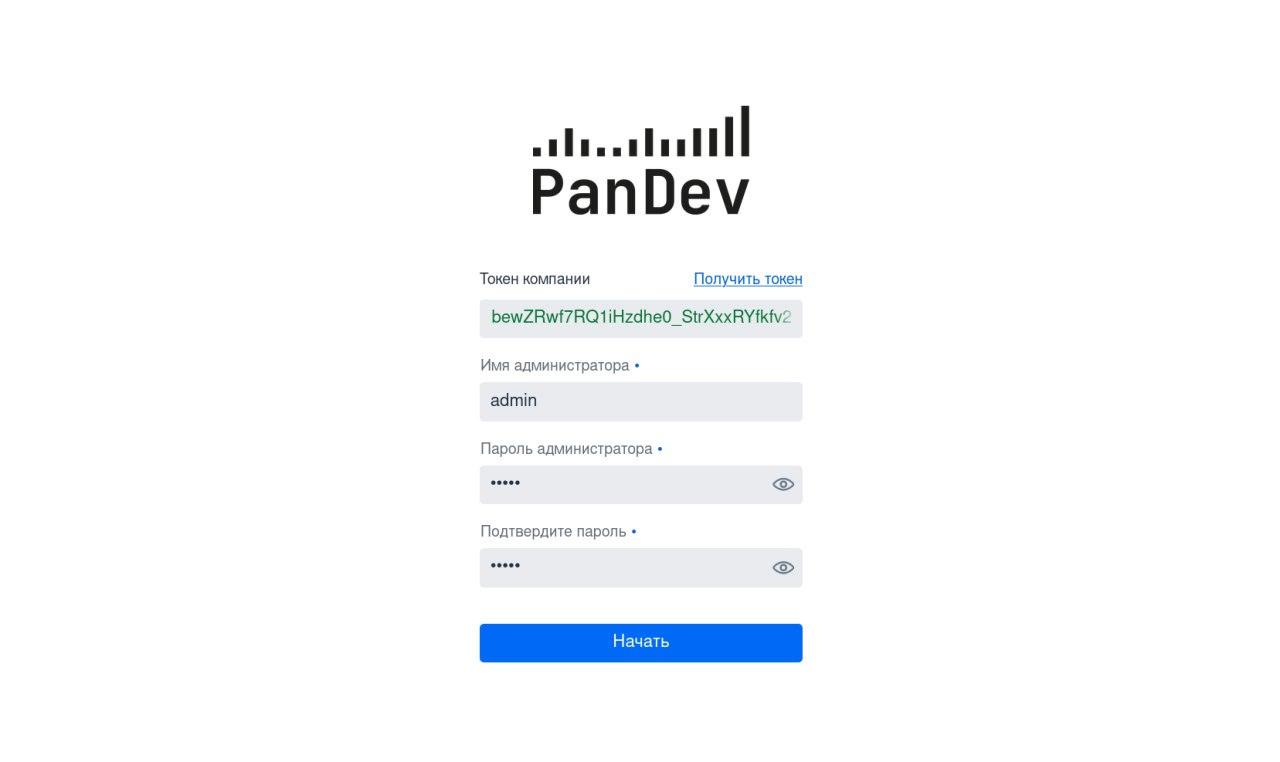
- A company token prompt appears.

-
Paste the company token and create administrator credentials.
-
Click
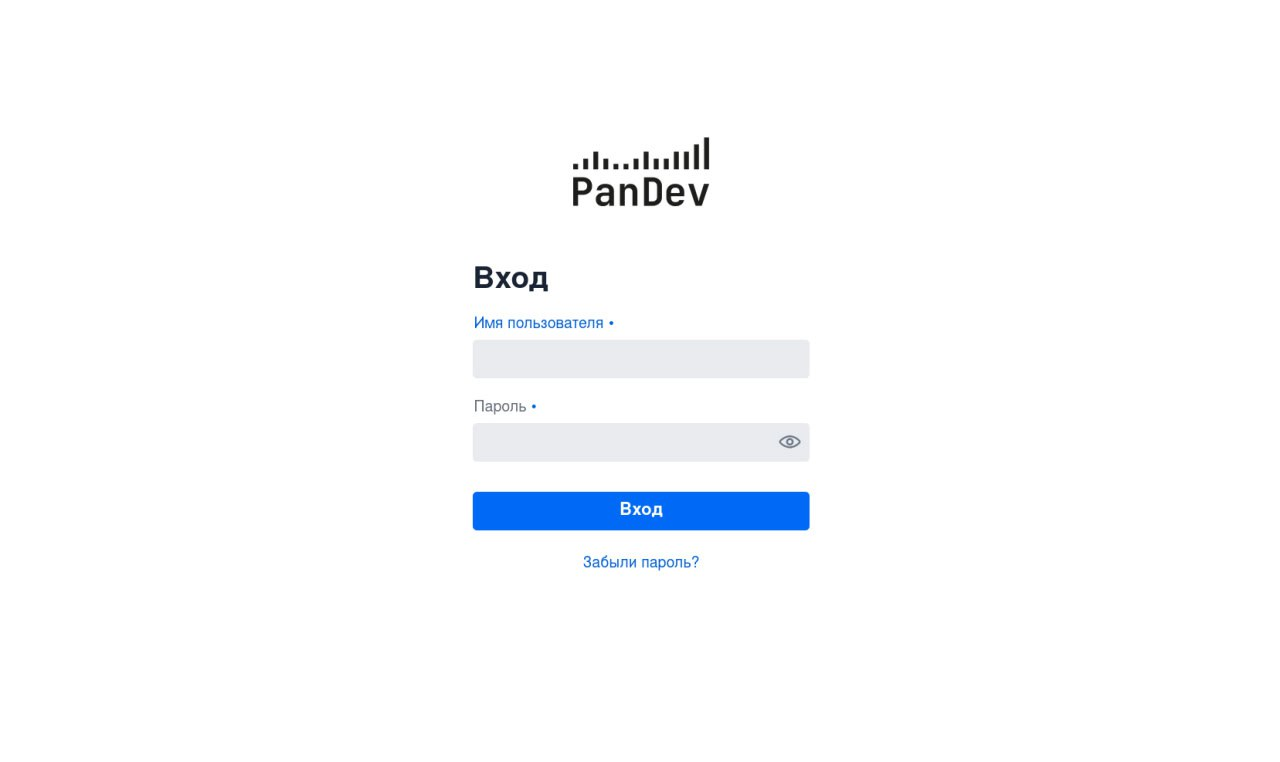
Get started.- You will see the admin credential form.
-
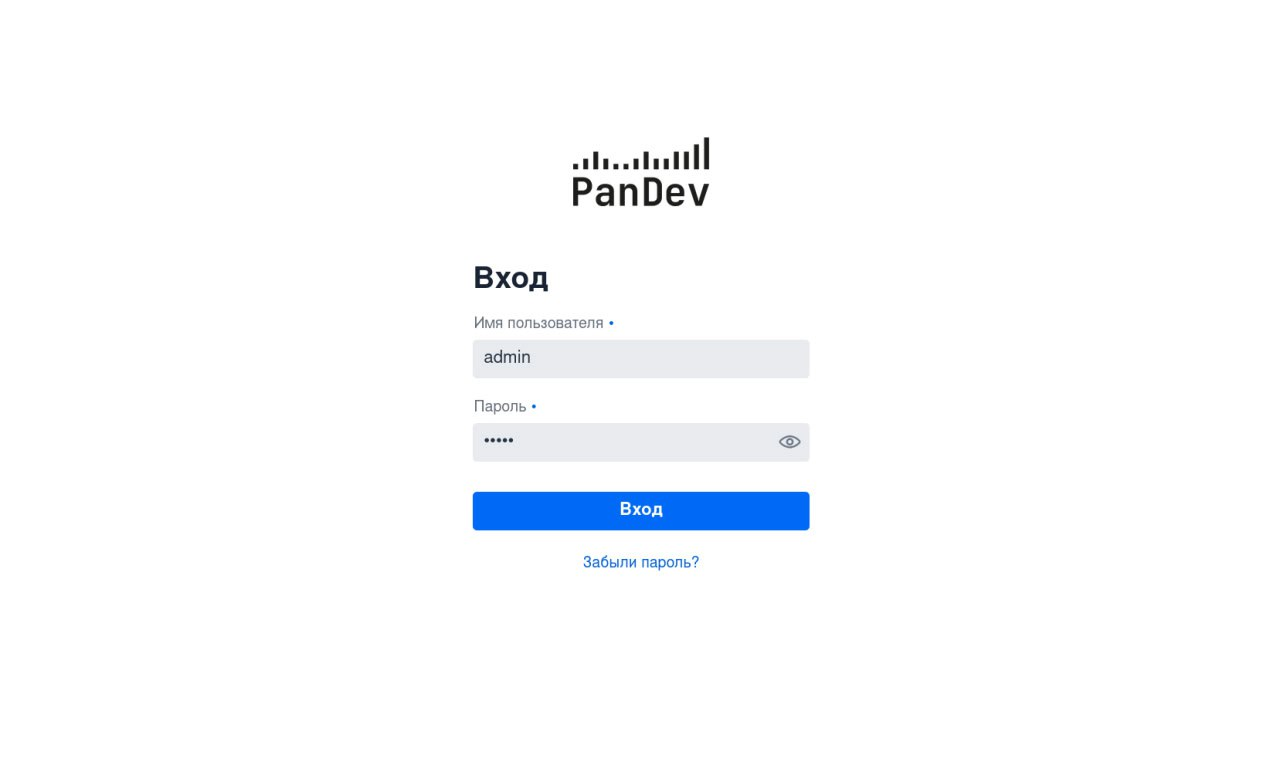
Enter the administrator credentials created in the previous step.
-
Click
Log in.-
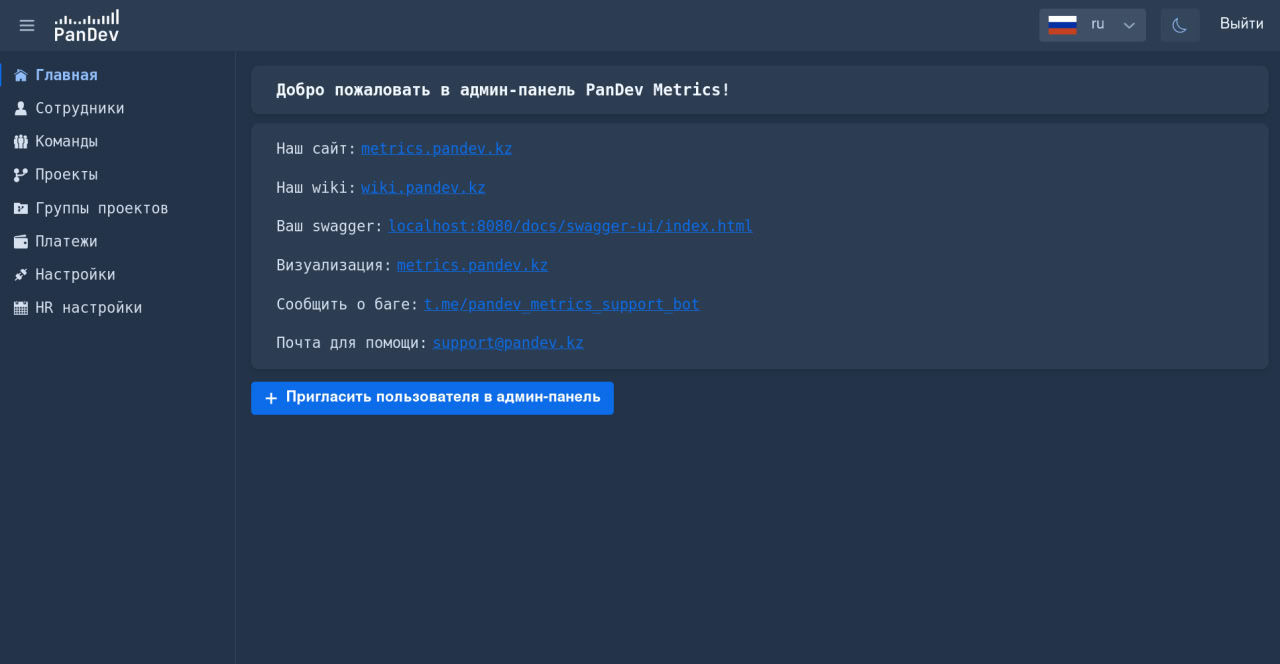
The main PanDev Metrics page opens.
-
The application is now ready!
Next steps: configure the LDAP integration or manually add users.